Monitoring alerts#
General#
Monitoring alerts send automatic e-mail notifications when selected devices enter a problematic state. Alerts are created for specific devices and are managed in the Monitoring Alerts section of the Control Center.
An alert belongs to a Control Center user. Notifications are sent to that user's current e-mail address.
Info
Users with the User or Admin role can create and manage monitoring alerts. Users with the Viewer role cannot create or manage monitoring alerts.
Creating alerts from the device list#
To create a monitoring alert:
- Open the device list, select the devices, and click Create monitoring alert in the floating action bar.
- Enter a name and, optionally, a description. Review the selected devices.
- Select the alert triggers, set the delay, and enable or disable resolution notifications.
- Save the alert.
The selected devices are added to the alert automatically. The alert is saved only if at least one device and at least one trigger are selected.
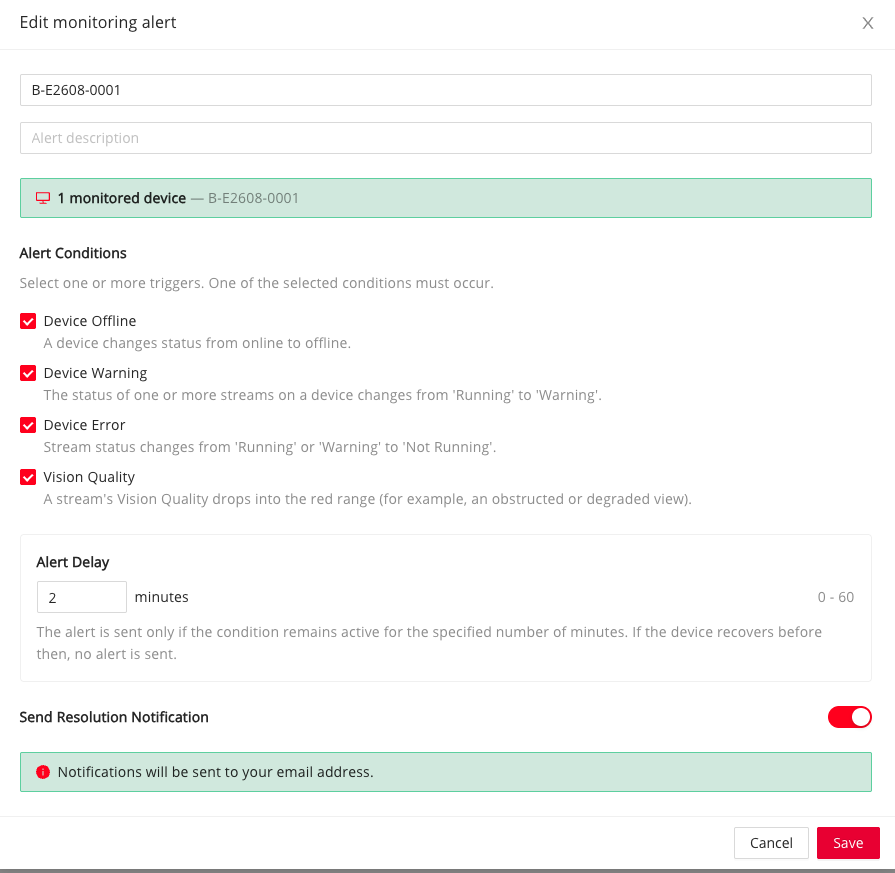
Edit monitoring alert
Alert triggers#
The alert triggers are based on device connection state, stream state, and Vision Quality.
| Trigger | Description |
|---|---|
| Device Offline | Triggers when a device changes its status from online to offline. |
| Device Warning | Triggers when the status of one or more streams on a device changes from Running to Warning. |
| Device Error | Triggers when a stream status changes from Running or Warning to Not Running. |
| Vision Quality | Triggers when a stream's Vision Quality drops into the red range, for example because of an obstructed or degraded view. For more information, see Device Health. |
At least one trigger must be selected. If multiple triggers are selected, the alert is sent when any selected condition occurs.
Alert delay#
The alert delay defines how long a condition must remain active before an e-mail notification is sent. The delay can be set from 0 to 60 minutes.
If the device recovers before the delay expires, no alert e-mail is sent.
Resolution notifications#
If Resolution Notification is enabled, the Control Center also sends an e-mail when the alert condition is resolved. The same delay is applied before sending the resolution notification.
If resolution notifications are disabled, an e-mail is sent when the alert triggers, but not when the condition is resolved.
Recipients#
Each monitoring alert notifies only the Control Center user it belongs to, at the e-mail address currently stored in their account. Additional recipients cannot be added.
Edit or delete alerts#
The Monitoring Alerts section shows all alerts belonging to the current user. The table includes the alert name, description, triggers, alert delay, resolution notification setting, and available actions.
Use the pencil icon to edit an alert or the trash can icon to delete it.
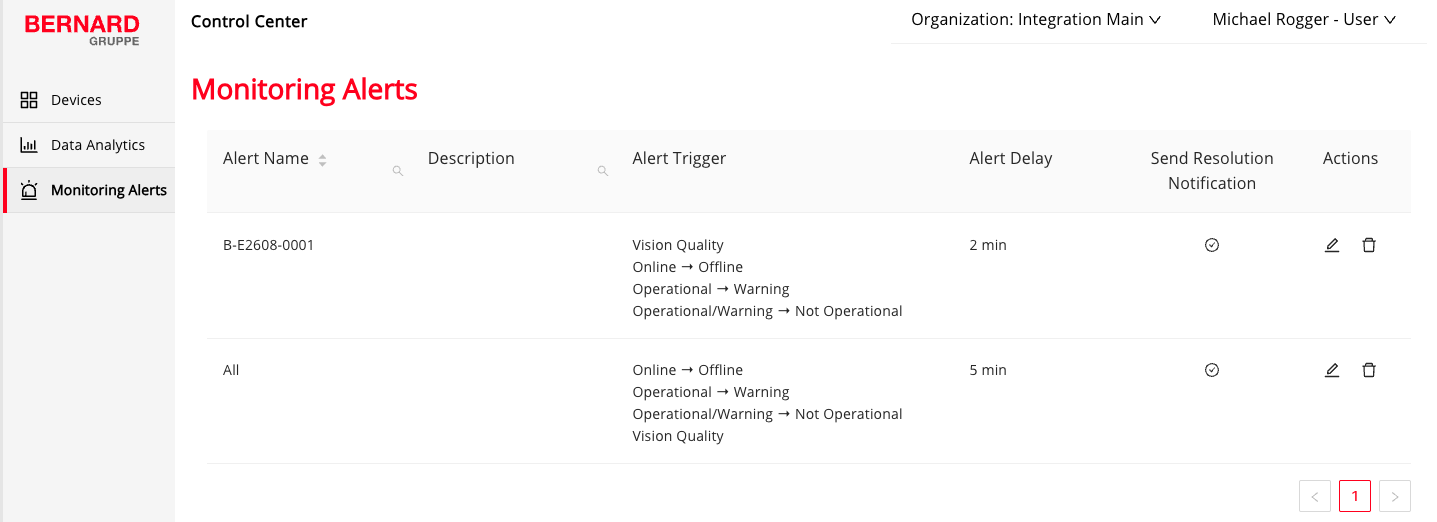
Monitoring alerts overview